HELP
Help & Support

Got questions?
We've got answers.

Step-by-step video tutorials and written guides to help you master every feature of Clean Assign.

After signing up, complete your business profile so Clean Assign can configure your booking page, invoices, and notifications correctly.

  1. 1 Go to Settings → Business Profile.
  2. 2 Upload your company logo and fill in your business name and address.
  3. 3 Set your default timezone and service area ZIP codes.
  4. 4 Click Save Changes — your booking page updates instantly.
app.cleanassign.com
Tutorial thumbnail
Click to play tutorial
3:12

Pro tip: Add a professional profile photo so clients recognize your brand in confirmation emails.

Was this tutorial helpful?

Contact support

The Clean Assign dashboard gives you a bird's-eye view of your entire operation — jobs, workers, revenue, and upcoming tasks — all in one screen.

  1. 1 The left sidebar contains all navigation: Dashboard, Jobs, Workers, Clients, Payments, and Reports.
  2. 2 The top bar shows today's job count, pending invoices, and unread notifications.
  3. 3 Use the Quick Add (+) button in the top-right to instantly create a job, client, or worker.
  4. 4 The calendar view on the dashboard shows all scheduled jobs color-coded by worker.
app.cleanassign.com
Tutorial thumbnail
Click to play tutorial
4:05

Was this tutorial helpful?

Contact support

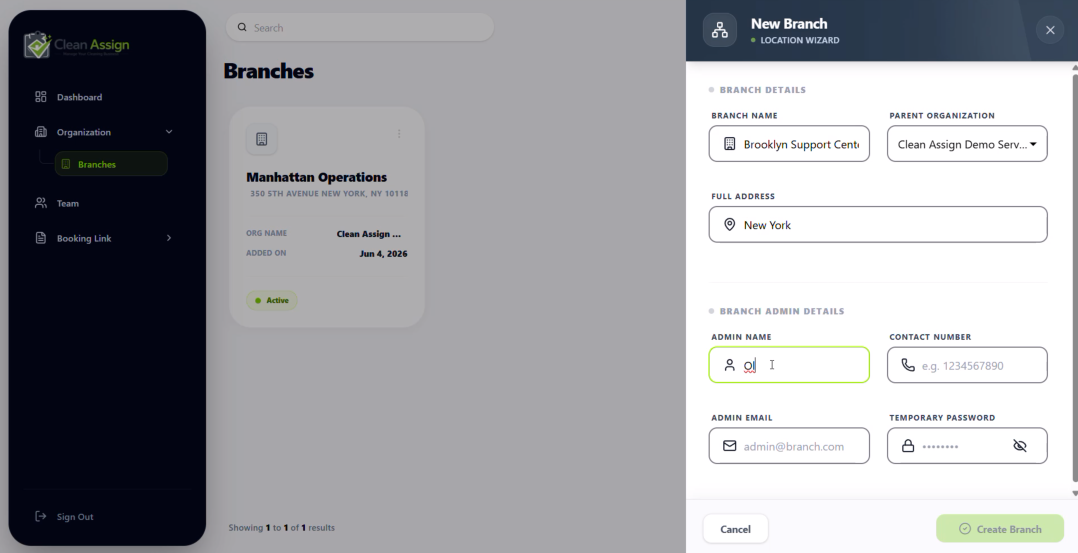
You can easily add a new branch from the Organization section using your Org Admin account. Each branch can have its own Branch Admin for managing operations independently.

  1. 1 Login using your Org Admin account.
  2. 2 From the left sidebar, navigate to Organization.
  3. 3 Open the Branches section.
  4. 4 Click the New Branch button.
  5. 5 Fill in the branch details including Branch Name, select the Organization, and enter the branch Address.
  6. 6 Add the Admin Email and set a Temporary Password for the branch admin.
  7. 7 Click Save/Create to finish adding the branch.
app.cleanassign.com
Tutorial thumbnail
Click to play tutorial
03:11

Pro tip: The email and temporary password you provide will be used by the new Branch Admin to log in for the first time.

Was this tutorial helpful?

Contact support

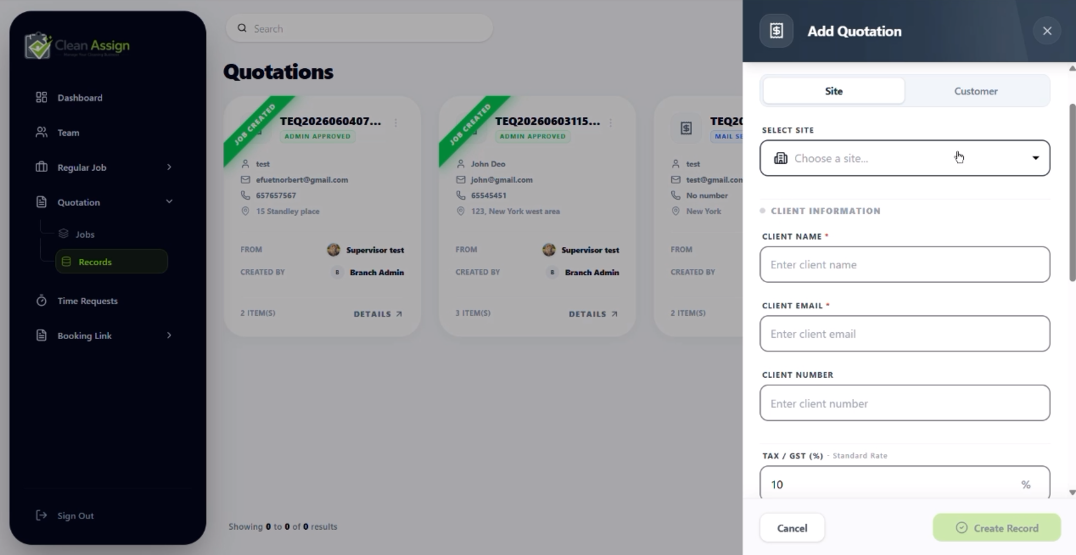
Branch Admins can quickly create professional quotations, send them to clients for approval, and convert approved quotations into active jobs with payment tracking and worker scheduling.

  1. 1 Login using your Branch Admin account.
  2. 2 Navigate to Quotation → Regular from the sidebar.
  3. 3 Click the New Quotation button.
  4. 4 Fill in the quotation form and add the Client Details.
  5. 5 Add one or multiple Work Descriptions with pricing and service details.
  6. 6 Click Create Record to save and send the quotation.
  7. 7 The client will receive the quotation by email and can approve it directly from the email link.
  8. 8 Alternatively, the Branch Admin can also approve the quotation manually from the dashboard.
  9. 9 Once approved, use the right-side action menu to create a job against the quotation.
  10. 10 After creating the job, the Branch Admin can update the Payment Status anytime.
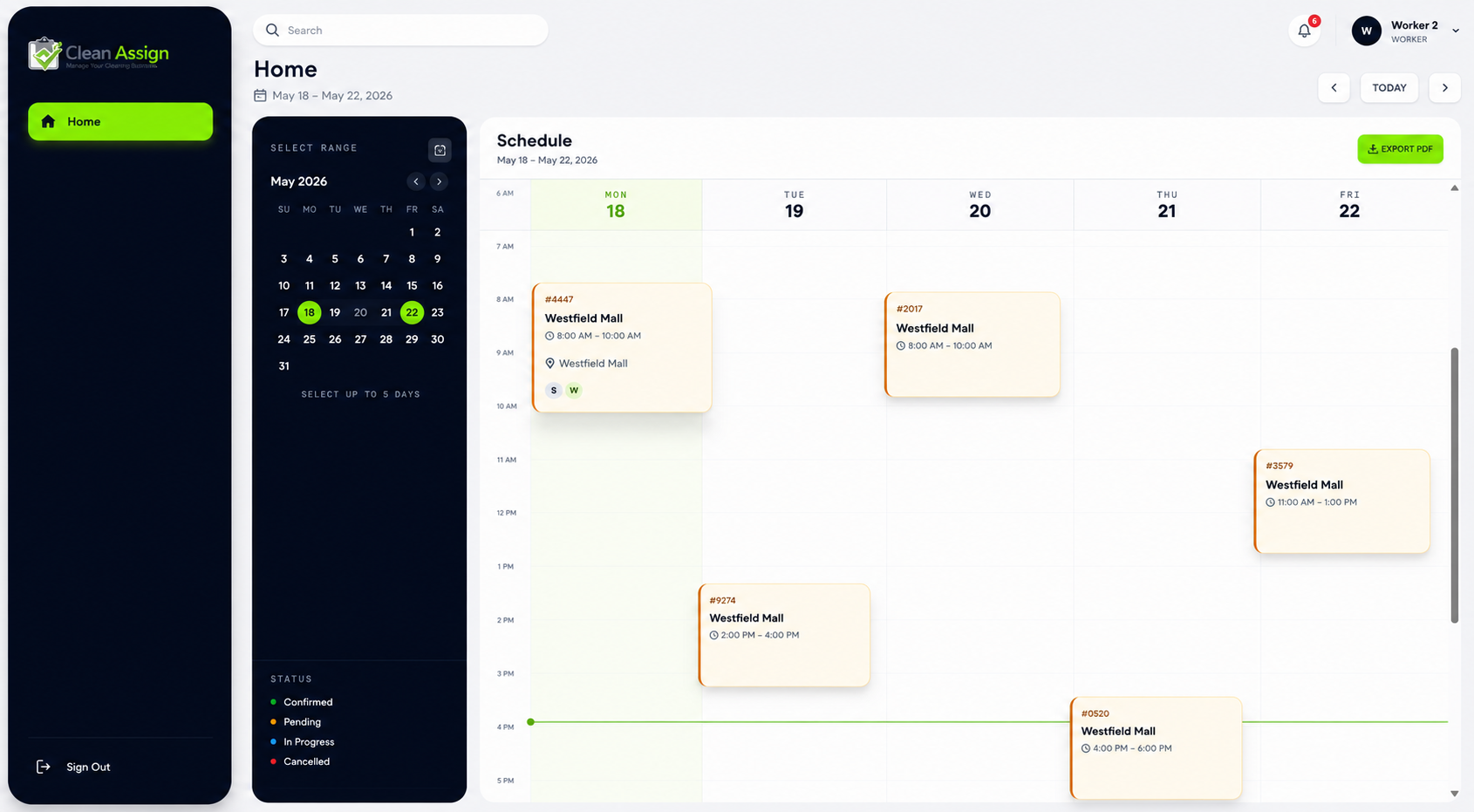
  11. 11 Assigned workers can log in to their account to view schedules, update job progress, and mark jobs as Completed.
app.cleanassign.com
Tutorial thumbnail
Click to play tutorial
5:26

Pro tip: Create detailed work descriptions with multiple service items to keep quotations clear and improve client approval rates.

Was this tutorial helpful?

Contact support
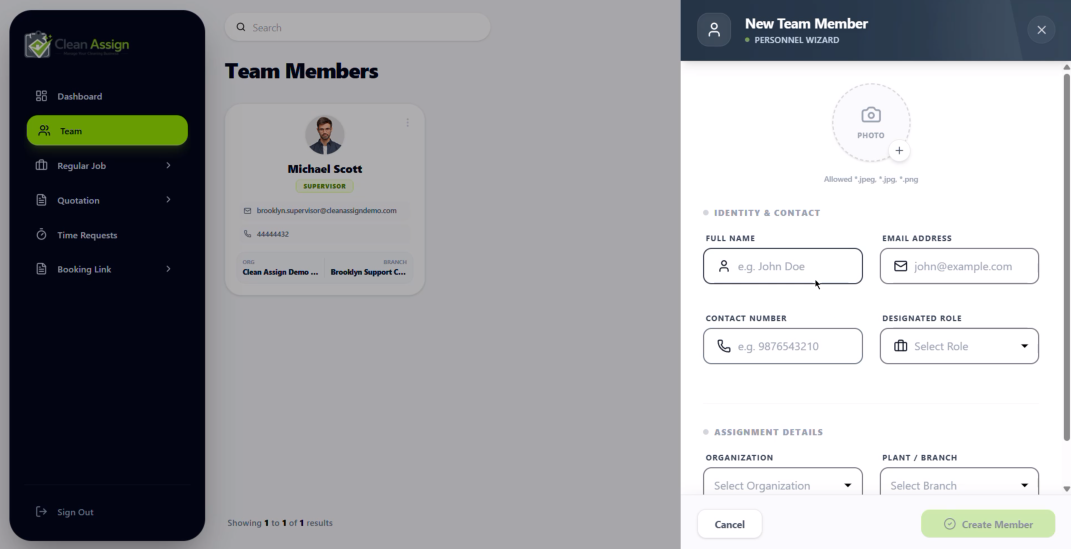
  1. 1 Navigate to Team → Add New Member.
  2. 2 Upload a Worker Photo — click the avatar area to browse or drag & drop an image.
  3. 3 Enter the worker's Full Name and Email Address.
  4. 4 Add their Contact Number so they can receive job alerts via SMS.
  5. 5 Select their Role (Worker) from the dropdown.
  6. 6 Choose the Organization this worker belongs to.
  7. 7 Select their assigned Branch from the branch list.
  8. 8 Click Create Member — they'll instantly receive an invite email to set up their account.
app.cleanassign.com
Tutorial thumbnail
Click to play tutorial
2:51

Pro tip: Make sure the email address is active — the worker must accept the invite email before they appear as available for job assignments.

Was this tutorial helpful?

Contact support

Branch Admins can create one-time job quotations, send them for approval, and convert approved quotations into scheduled jobs for workers.

  1. 1 Login using your Branch Admin account.
  2. 2 Navigate to Quotation → Regular from the sidebar.
  3. 3 Click the New Quotation button.
  4. 4 Fill in the quotation form and enter the Client Details.
  5. 5 Add one or multiple Work Descriptions with service information.
  6. 6 Click Create Record to save and send the quotation.
  7. 7 The client will receive the quotation by email and can approve it directly.
  8. 8 The Branch Admin can also manually approve the quotation from the dashboard.
  9. 9 Once approved, click the right-side action menu and select Create Job.
  10. 10 Fill in the scheduling details, assign workers, and confirm the job creation.
  11. 11 Assigned workers can log in to view their schedules and update the job status.
app.cleanassign.com
Tutorial thumbnail
Click to play tutorial
4:18

Pro tip: Approving quotations quickly helps you schedule jobs faster and keeps worker availability organized.

Was this tutorial helpful?

Contact support
  1. 1 Log in to your Branch Admin account.
  2. 2 From the sidebar, navigate to Regular Job.
  3. 3 In the site list, click Select Site — then choose New Site to add a site that hasn't been set up yet.
  4. 4 Fill in the new site details and save — the site will now appear in your list.
  5. 5 Once the site is added, locate it in the list and click the Briefcase icon (Add / Edit Job) next to it.
  6. 6 Fill in all the job details: service type, frequency, scheduled time, and any special instructions.
  7. 7 Assign the worker responsible for this recurring job using the worker dropdown.
  8. 8 Click Save Changes — the recurring job is now active and will repeat automatically.
app.cleanassign.com
Tutorial thumbnail
Click to play tutorial
4:05

Pro tip: Always add the site first before creating the job — the briefcase icon only appears once a site is saved in the system.

Was this tutorial helpful?

Contact support
Still stuck?

Our support team is
always here for you.

Book a free 1:1 call with a Clean Assign expert and get your specific question answered live.